SumUp
The SumUp integration lets your till take card payments through your own SumUp account. The amount goes straight to your SumUp card reader, the guest pays there by card or phone, and the till records the payment as soon as it is confirmed.
What you need
- a SumUp merchant account,
- a SumUp card reader that can be paired over the internet (e.g. SumUp Solo),
- the API key and merchant code from your SumUp account.
You will find the API key and merchant code in your SumUp account, in the developer/API section. Treat the API key like a password and do not share it.
1. Activate the integration
- Open Integrations in the sidebar and click SumUp.
- Click Activate in the window.
The sidebar now shows a SumUp entry.
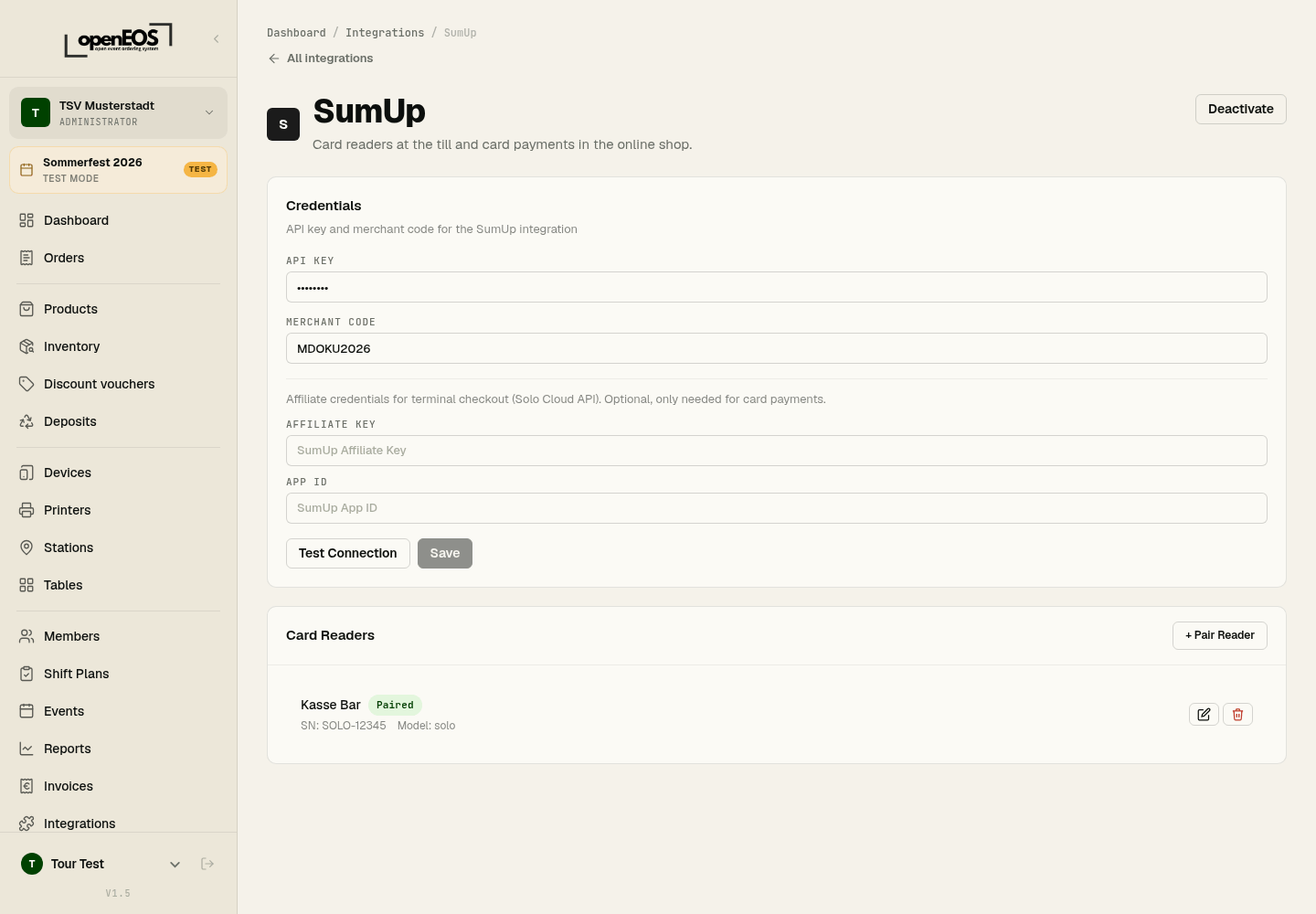
2. Enter the credentials
On the SumUp page:
- API key – your SumUp API key (format
sup_sk_…). - Merchant code – your SumUp merchant code (e.g.
MXXXXXXXX). - Affiliate key and App ID – optional, only for terminal checkout via the Solo Cloud API.
Test Connection checks the details, Save stores them. Saved keys are only shown shortened afterwards (****1234).
3. Pair a card reader
- Switch the reader on and connect it to the internet. It shows a pairing code.
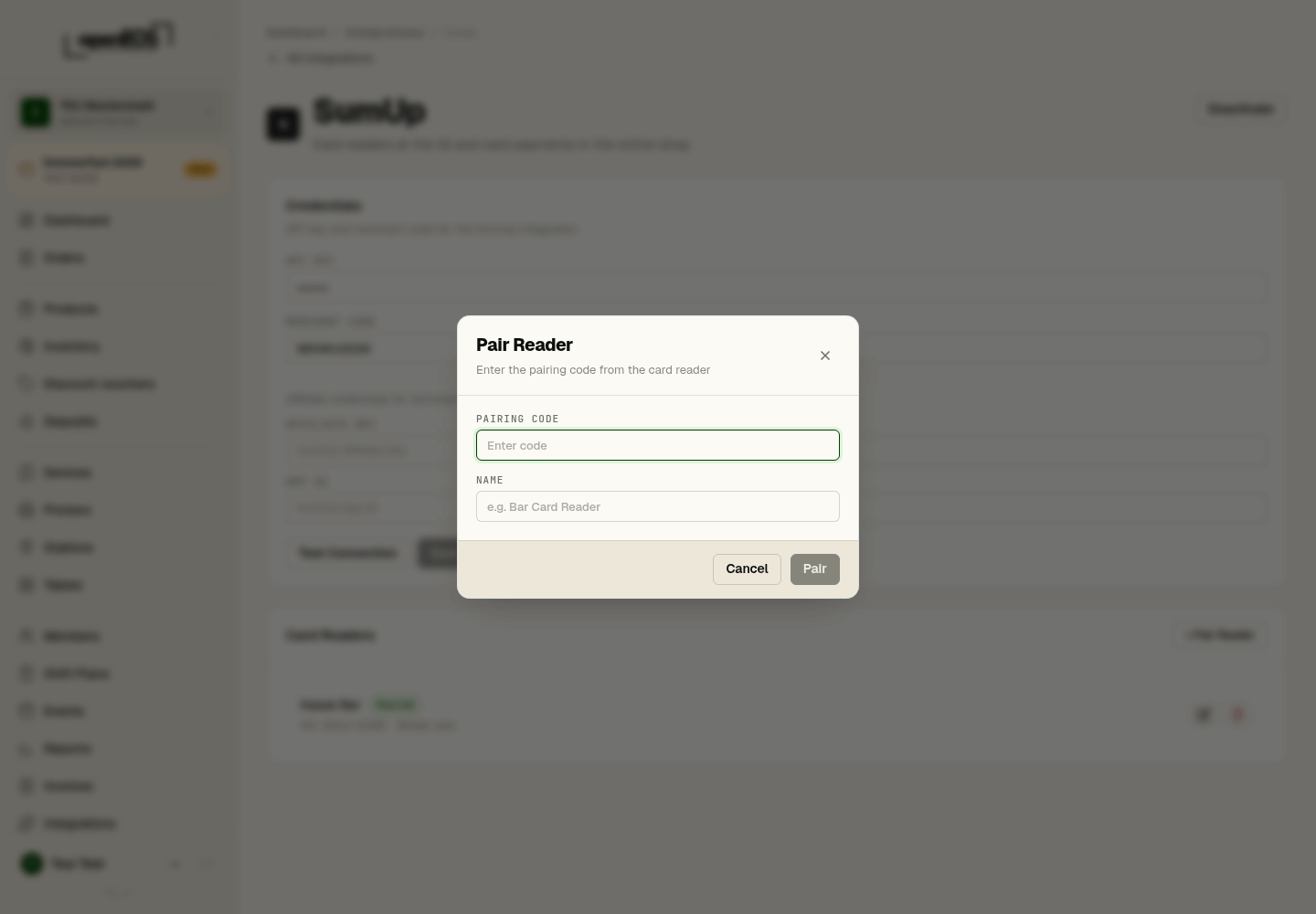
- Under Card Readers, click Pair Reader, enter the pairing code and give the device a name, e.g. "Bar till".
- The reader appears in the list, where you can rename or remove it.
At the till
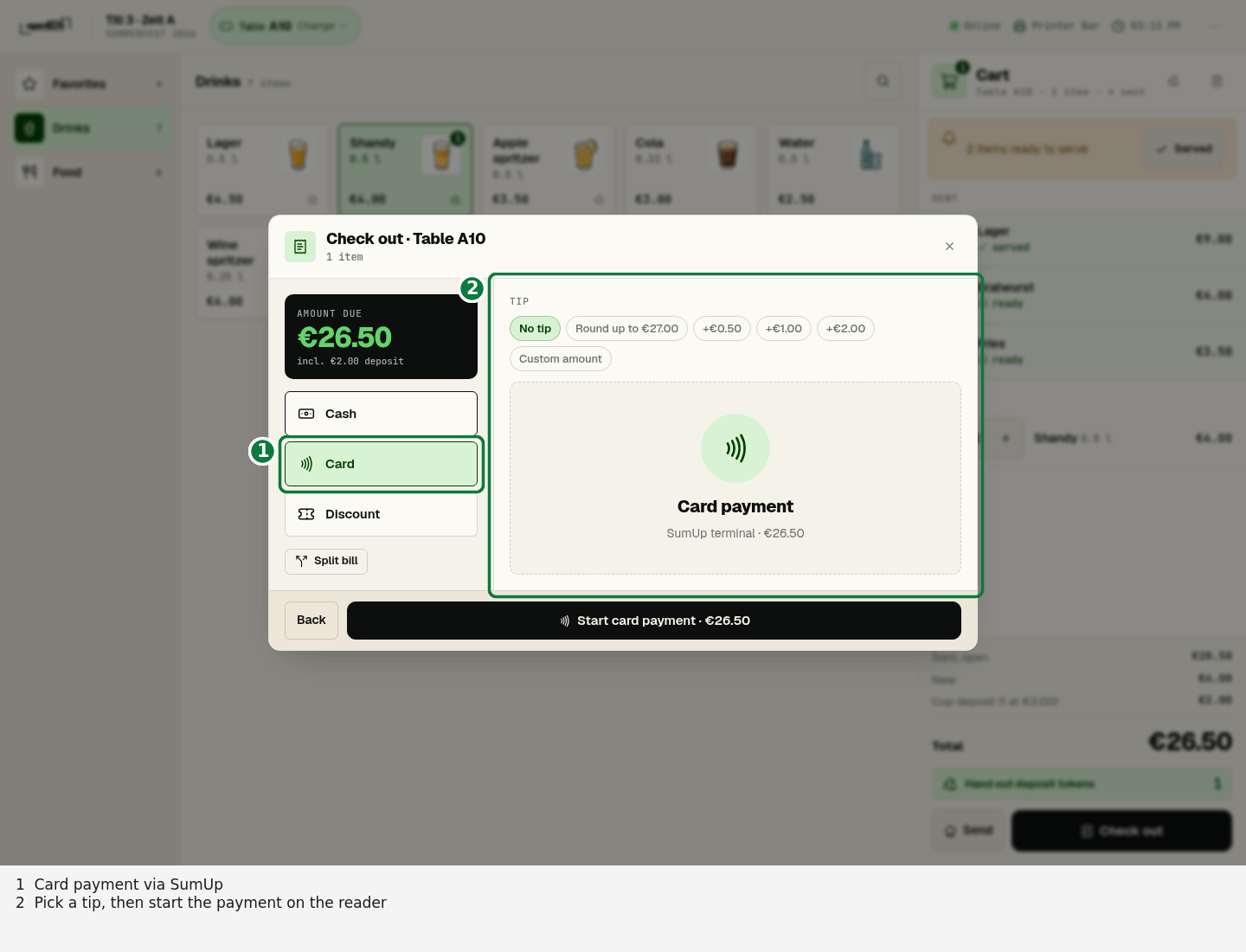
Once SumUp is active and a card reader is paired, the till offers card payment at checkout. The amount appears on the reader, and the order counts as paid as soon as SumUp confirms the payment.
Switching off
Deactivate on the SumUp page, or in the window under Integrations, switches SumUp off. Card payment disappears from the till. Credentials and paired readers stay stored and are back immediately once you activate it again.
- Is the integration marked Active under Integrations?
- Does Test Connection succeed? If not, enter the API key again.
- Is the card reader switched on, online and listed as paired?