Cloud TSE
The cloud TSE is being rolled out and will soon be available on openeos.de. Until then you take card and online payments in “All features” in Germany (or use “Orders only”/“Cashless”) – cash comes with the cloud TSE.
In Germany, a till that accepts cash needs a certified technical security device (TSE) under the Cash Register Security Regulation (KassenSichV). The TSE signs every till transaction so that the records cannot be changed unnoticed later.
OpenEOS connects the Swissbit Cloud TSE 2 for this. You don't need any hardware: your organization gets one TSE, and all devices (tablets, phones) are input terminals of one shared till. With an active TSE you can choose the operating mode All features with cash.
The cloud TSE is only available for organizations in Germany. In other countries the integration shows Germany only in the catalog. What applies there is described under Austria, Switzerland and other countries.
Coming soon
As long as the Cloud TSE is announced but not yet switched on for your server, you see the following in the app:
- In the catalog under Integrations the Cloud TSE is listed as Coming soon. Instead of Activate, the window shows the note "The cloud TSE for cash payments in Germany is coming soon. Until then you take card and online payments in “All features”."
- Under Settings → Organization → Operating mode, All features is no longer greyed out: you can choose the mode, but cash waits for the Cloud TSE. Card and online payments work.
- In an event's payment dialog there is no question about the Cloud TSE, only a Coming soon note.
Until then you take card and online payments in “All features” (or use “Orders only”/“Cashless”). Everything else on this page applies as soon as the Cloud TSE is available.
On a self-hosted installation without a contract with a TSE provider, the integration is instead listed as Not available in the catalog: "No cloud TSE is set up on this server. Ask the operator of your installation."
What you need
- an organization in Germany,
- a paid event: a TSE costs a fee for every month it runs. OpenEOS therefore only creates it when a paid event is coming up – at the earliest in the calendar month the event starts – and deactivates it again at the end of the month (see Lifetime),
- internet at the tills. If the TSE fails, you keep selling (see Outage),
- the German tax number or VAT ID and the address of your organization (tax details). They go into every cash point closing. We do not ask for them when you register: if they are missing, the payment dialog asks for them when you buy the event (see Details at your first purchase), otherwise the Cloud TSE page before setup.
Add it when you buy an event
You add the cloud TSE explicitly when you buy an event: in the operating mode All features the payment dialog asks With cloud TSE (legally compliant cash)? – No, without cloud TSE is preselected. Only with Yes, with cloud TSE does OpenEOS switch the Cloud TSE integration on by itself on activation (paid, on invoice or waived by support); afterwards the Cloud TSE page says Switched on automatically when you bought “…”. Without a yes there is no TSE and no surcharge – your tills take card and online payments, but no cash. The TSE itself is set up for the first event day (see Setup) – right away if the event is already running.
- All features (existing): the same question. With Yes your operating mode becomes All features on activation and the TSE follows automatically. With No nothing changes.
- Cashless: you can switch to All features at any time. If an event you bought with the cloud TSE is coming up, OpenEOS switches the integration on by itself (see Operating modes).
- Orders only and organizations outside Germany do not get a TSE.
Cost: the cloud TSE is currently included in the event price – there is no surcharge.
Lifetime: the month of your event
The TSE runs for the month of your event and is deactivated automatically at the end of the month. That way you never pay for a month without an event.
- If you have several events in the same month, they all use the same TSE.
- On the last day of the month at 8 pm (German time) OpenEOS deactivates the TSE. Before that it collects the final export and closes the finished business days (cash point closing). The TSE exports the rest itself on deactivation; OpenEOS collects and archives it.
- The Cloud TSE page shows the date under Automatic deactivation. The admins get an e-mail after the deactivation.
- Afterwards your tills in Germany accept no cash until the next paid event starts. For it, OpenEOS automatically sets up a new TSE with a new serial number. Receipts and exports of the old TSE stay available.
- Next month already booked: if you already have a paid event next month (paid or unlocked on invoice), the TSE simply stays active instead of being deactivated and set up again. That saves the new setup and another notice to the tax office; serial number and till stay the same. At the end of that month OpenEOS checks the same again. The page then says, for example, Stays active in December because “Christmas market” is already booked, with the new date above it (on 31 December 2026, 20:00).
- The decision is made on the last day of the month at 8 pm. An event booked on that day still counts if it is paid or unlocked by then.
- If the event next month is cancelled (or refunded) before the month changes, OpenEOS deactivates the TSE at the end of the month as usual.
- Cash point closings run as always, and OpenEOS keeps collecting the exports every night. No final export is needed because the TSE keeps running.
- Only the directly following month counts: if there is a month without an event in between, the TSE is deactivated and set up again for the later event.
- Exception: if a paid event is running at the deactivation time – even just its business day (6 am to 6 am), for example a party on the last day of the month or across the month change – the TSE stays until the end of the next month. OpenEOS bears the extra month, you are not charged for it; the page then says Postponed because “…” runs past the end of the month.
1. Activate the integration yourself
You can also switch the integration on yourself beforehand:
- Open Integrations in the sidebar and click Cloud TSE.
- Click Activate in the dialog.
The sidebar now shows the entry Cloud TSE. Activating costs nothing yet – it only says that your organization wants a TSE.
2. Setup – usually automatic
The Cloud TSE page shows which requirements are met: organization in Germany, paid event and the earliest setup date.
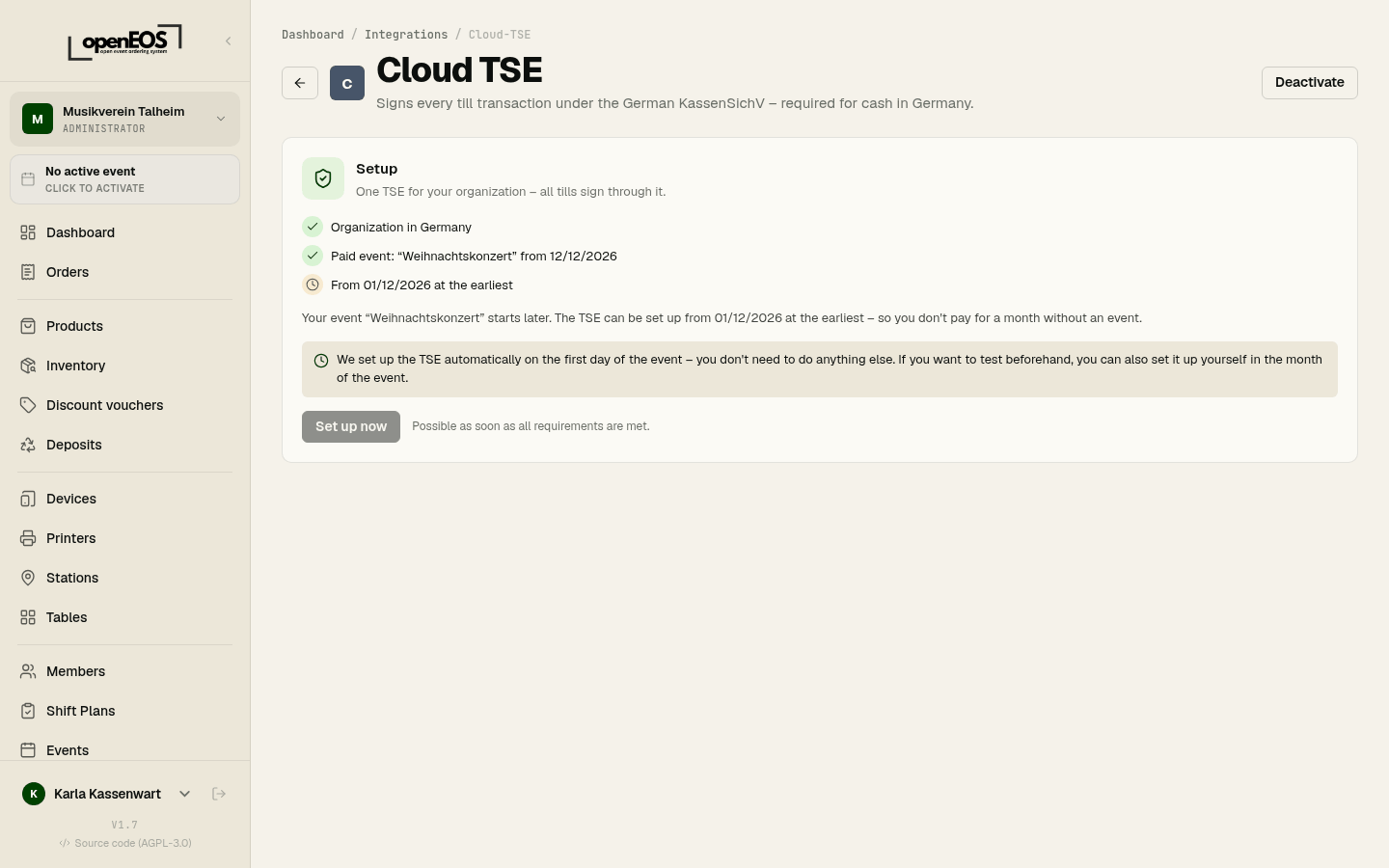
- Automatic: in good time before sales start – about 12 hours ahead, never before the month of the event – OpenEOS sets up the TSE by itself. You don't need to do anything else.
- Yourself: if you want to test beforehand, click Set up now in the month of the event. This usually takes only a few seconds; the page updates by itself.
Once the TSE is active, Cashless automatically becomes All features: your tills accept cash from now on. The change appears in the operating mode history.
The page then shows Setup failed with the error. Try again starts it once more. If that doesn't help, contact support.
The Cloud TSE page
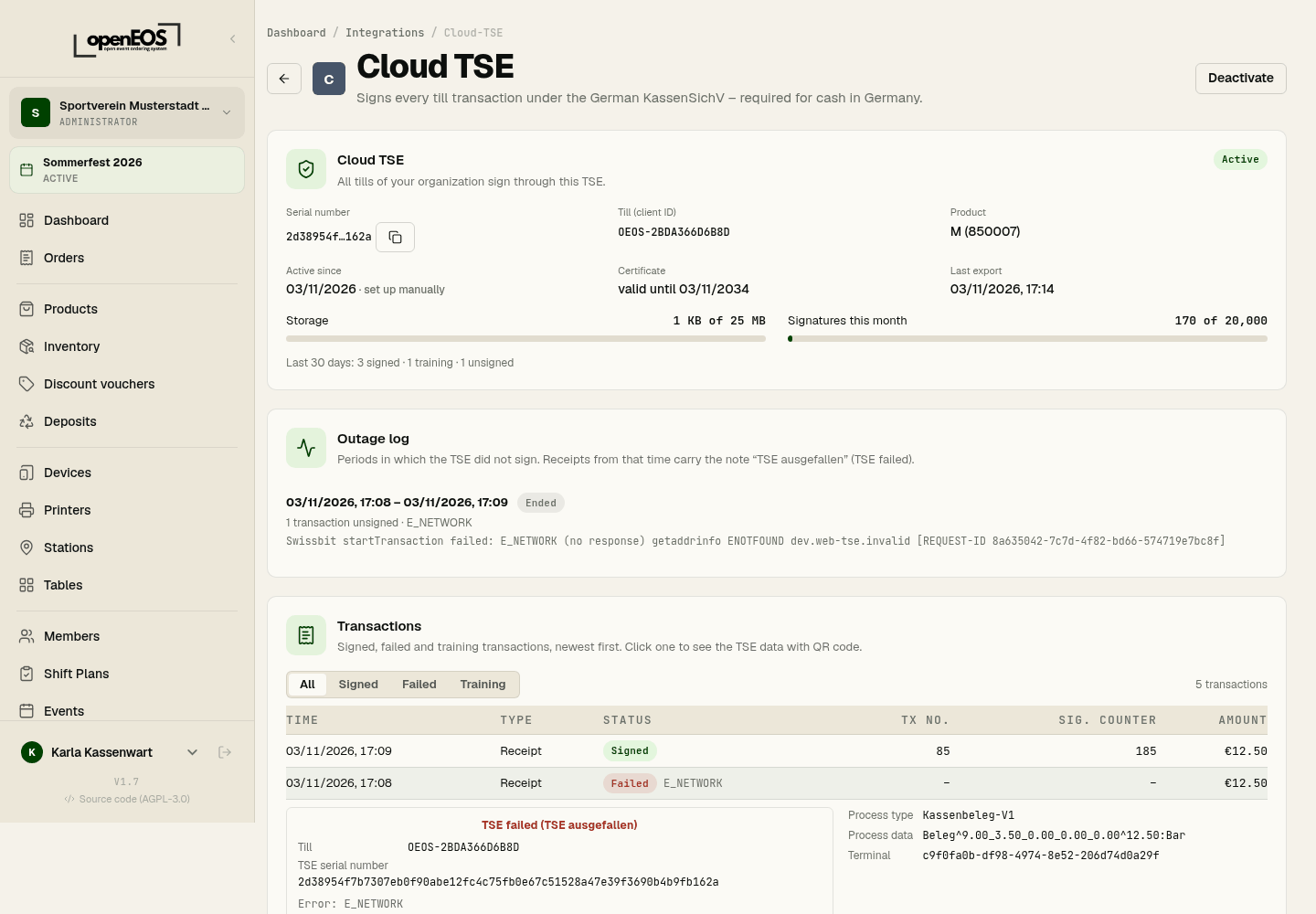
- Cloud TSE: status (Active or Disrupted), serial number (shortened, with copy button), the till (client ID
OEOS-…), product, storage, signatures this month, certificate expiry and the last export. - Outage log: periods in which the TSE did not sign.
- Transactions: all signed, failed and training transactions. Click one to see the TSE data with QR code, just like on the receipt.
- Cash register inspection: DSFinV-K and TSE export for a period, the cash point closings and the former tip setting (only for older transactions, see Tips) – see Cash register inspection and DSFinV-K.
- Exports: the archived TSE data for download.
- Danger zone: deactivate the TSE permanently.
What is on the receipt
With an active TSE, every receipt and refund receipt carries the TSE data – printed and in the receipt preview at the till:
- till ID (the till's serial number,
OEOS-…), - TSE serial number and signature, in full,
- receipt number (consecutive per till), transaction number and signature counter,
- start and end of the transaction (UTC, as delivered by the TSE),
- the order start („Bestellbeginn“) if the order was placed first and paid later (table service, tab),
- signature algorithm and time format,
- a QR code with all data according to DSFinV-K. Auditors can scan it with a verification app.
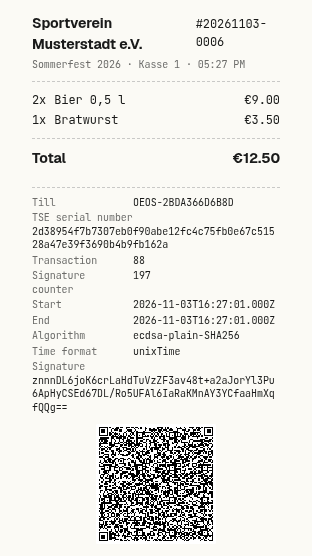
The TSE data cannot be deselected. If you designed your own receipt template, OpenEOS adds it automatically. A reprint is marked NACHDRUCK (reprint) and shows the same signature as the first receipt; no new transaction is created. Printed receipts are always in German (e.g. "TSE nicht erreichbar").
If your organization works without VAT (small business), every receipt says „Steuerfrei nach § 19 Abs. 1 UStG (Kleinunternehmer)“ instead of the VAT lines, see Small businesses.
In test mode of an event, transactions are signed as training. The receipt then says TRAININGSBUCHUNG – KEIN VERKAUF (training – not a sale). Training transactions are kept, even when the test orders are deleted on activating the event. The test payments “Cash (test)” and “Card (test)” are simulations without money; the TSE does not sign them.
Under Orders, admins see a Cloud TSE section in every order with its TSE transactions and the QR code.
What the TSE secures
With an active Cloud TSE, OpenEOS signs every transaction that belongs to the till:
- payments at the till and in the admin area, including split and combined payments, with tips,
- orders without immediate payment (table service, counter on a tab, admin area) – before the kitchen ticket, see Receipts and the Cloud TSE,
- online payments in the online shop and for QR code orders, as soon as the payment comes in, see Online orders,
- refunds and cancellations with a reference to the original receipt,
- selling and buying back tokens (accepting them as payment is part of the payment),
- deposit payouts, cash book entries and tip payouts to employed servers (Tips),
- server settlements with expected amount, counted amount and difference (Servers),
- training transactions in test mode.
Signature first, then the receipt
A receipt only counts as signed if the TSE transaction is finished before the receipt is issued (AEAO zu § 146a Nr. 2.2.3.3 and 2.5.2). OpenEOS therefore only prints or shows the receipt once the signature is there – the digital receipt too. So that the till doesn't stall, OpenEOS waits only a few seconds for the TSE.
When the TSE fails
If the TSE does not respond in time (e.g. no internet or a disruption at the provider), you keep selling. The receipt is then an outage receipt: instead of the signature it says „TSE nicht erreichbar – Beleg ohne Signatur“ (TSE not reachable – receipt without signature), and the till shows a hint at the top:
TSE failed – you can keep selling, the receipt will be marked.
OpenEOS records the outage in the outage log and emails the admins once. As soon as the next transaction is signed again, the outage ends and the hint at the till disappears. Transactions are not signed afterwards – this is intended: outage times are documented, the receipt is marked, and business goes on (AEAO zu § 146a Nr. 1.14).
Kitchen tickets during an outage: while the outage lasts, the till waits at most one and a half seconds for the order to be secured before the kitchen ticket, instead of the usual time. If there is no answer, the kitchen ticket prints anyway, marked TSE-AUSFALL (TSE outage). That way nothing piles up in the kitchen. Receipts still wait the full time; as soon as one is signed again, orders go back to the normal time limit.
Signature after the receipt was issued
Sometimes the TSE did sign a transaction but the answer only arrived after printing – for example because the connection dropped at the wrong moment. OpenEOS reconciles this regularly and still stores the signature. The receipt stays an outage receipt:
- In the DSFinV-K export the transaction has the real signature data and the note „Signatur nach Belegausgabe“ (signature after the receipt was issued).
- A reprint shows the outage note and below it „Signatur nach Belegausgabe“ with transaction number, signature counter and end time – without a QR code, so it cannot be mistaken for a regularly signed receipt.
Record in your procedure documentation how you handle outages; the outage log on this page provides the periods.
Exports and cash register inspection
OpenEOS collects the TSE data every night (TAR file according to TR-03153) and archives it for ten years – as well as the DSFinV-K exports, training transactions and the data on outages. Under Exports you see the period, size and checksum (SHA-256) of each export. In addition, every business day gets a cash point closing with the DSFinV-K export.
If the tax office comes for a cash register inspection (Kassen-Nachschau) or audit, download the DSFinV-K export and the TSE export (TAR) for the period in the Cash register inspection section. What exactly to hand over is described in Cash register inspection and DSFinV-K.
Small businesses and tax status
The TSE obligation also applies to small businesses and tax-privileged clubs as soon as cash is recorded electronically. For VAT, OpenEOS distinguishes:
- Without VAT (small business under § 19 UStG, setting No VAT under Settings): all revenue, including deposits and tips to the club, is exported to the DSFinV-K with VAT key 6 and the description „steuerfrei – Kleinunternehmer § 19 UStG“. Since 2025 small business revenue is tax-exempt, not "not taxable". Receipts, refund receipts, deposit returns and digital receipts carry the notice „Steuerfrei nach § 19 Abs. 1 UStG (Kleinunternehmer)“ and never a VAT amount – otherwise the VAT shown would be owed (§ 14c UStG).
- Not taxable (key 5) are only cash book entries, tips of employed servers and deposit returns against the old balance.
Limits: you are a small business if your revenue was at most 25,000 € in the previous year and does not exceed 100,000 € in the current year. The very revenue that exceeds 100,000 € is already taxable. When your revenue in OpenEOS reaches 80 % of this limit, the dashboard shows a notice. It is only a guide: OpenEOS does not know revenue outside OpenEOS.
Changing the tax status: if you become VAT-liable (or a small business again), switch with the Cloud TSE via Change tax status. OpenEOS first creates a cash point closing up to now, so that all earlier transactions are closed with the old status, and then changes the master data. The change is logged. Once there are transactions with the TSE, OpenEOS no longer lets you flip the simple No VAT switch.
Conditions of use
The manufacturer of the Cloud-TSE (Swissbit) defines in an environmental protection concept the conditions under which the TSE may be used. You find the conditions of use of the Cloud-TSE under Legal once the Cloud-TSE is available; until Swissbit provides them, a note is shown there. Follow them when taking payments with the Cloud-TSE.
Deactivation
At the end of the month OpenEOS deactivates the TSE by itself (see Lifetime) – you do not need to do anything for that. There is no pause for a TSE. Under Danger zone → Deactivate TSE you take it out of service permanently, for example when your club no longer uses OpenEOS with cash:
- The TSE can never sign again.
- The remaining data is exported and archived automatically (final export).
- In Germany your tills stop accepting cash immediately.
- The Cloud TSE integration is switched off.
- For a later event you set up a new TSE with a new serial number.
You confirm the deactivation with a checkbox. Receipts and exports of the old TSE remain available for ten years. Don't deactivate the TSE while an event is running.
As long as a TSE is set up, the integration cannot simply be switched off with Deactivate – OpenEOS points you to the danger zone instead.
This is not tax advice. Your tax office decides in individual cases; if in doubt, talk to your tax advisor.