Settings
Under Settings you manage your personal data as well as your organization's settings. You reach them through the menu under your name at the bottom left of the sidebar. The section is divided into two tabs: Personal and Organization.
Personal
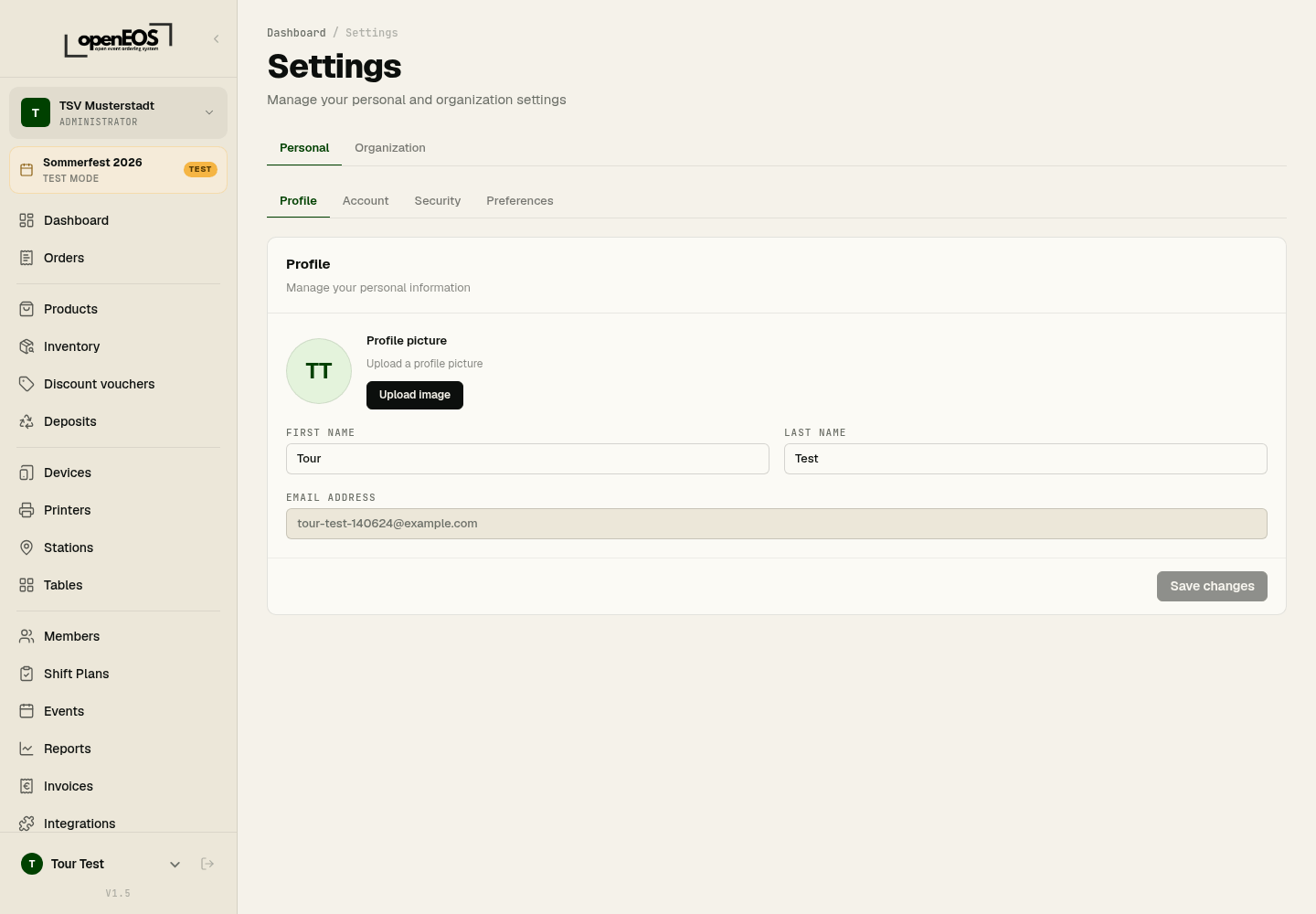
The Personal tab is divided into several sub-sections:
- Profile – manage your profile picture, first name and last name. Your email address is shown here for reference only.
- Account – change your email address and password.
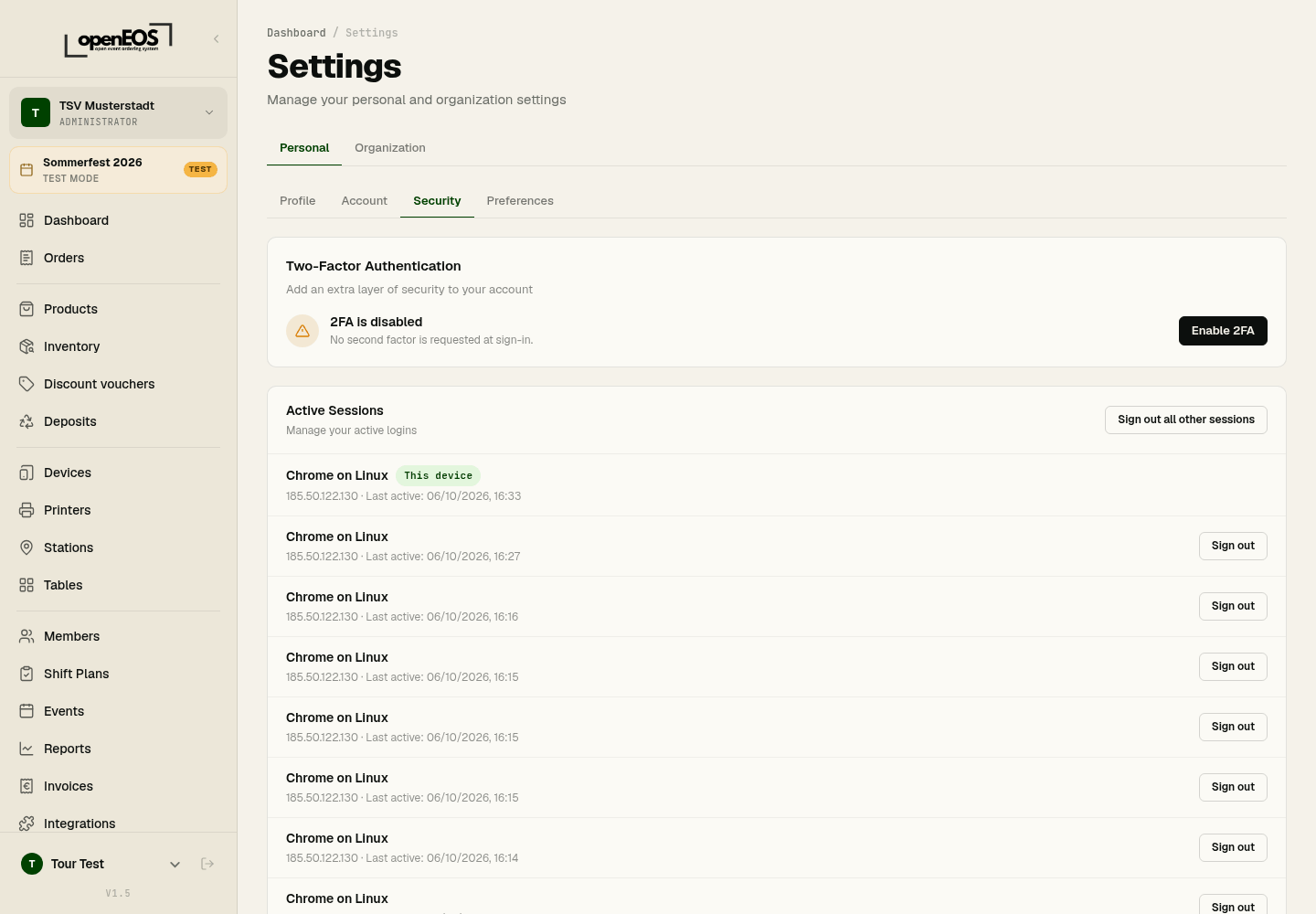
- Security – manage two-factor authentication and signed-in sessions.
- Preferences – Appearance (Light, Dark or System), Language, notifications and the Tour of the interface to watch again.
Save changes in each section using Save changes.
Security
In the Security sub-section you set up two-factor authentication and keep an eye on your account's sessions. You change your password under Account.
Organization
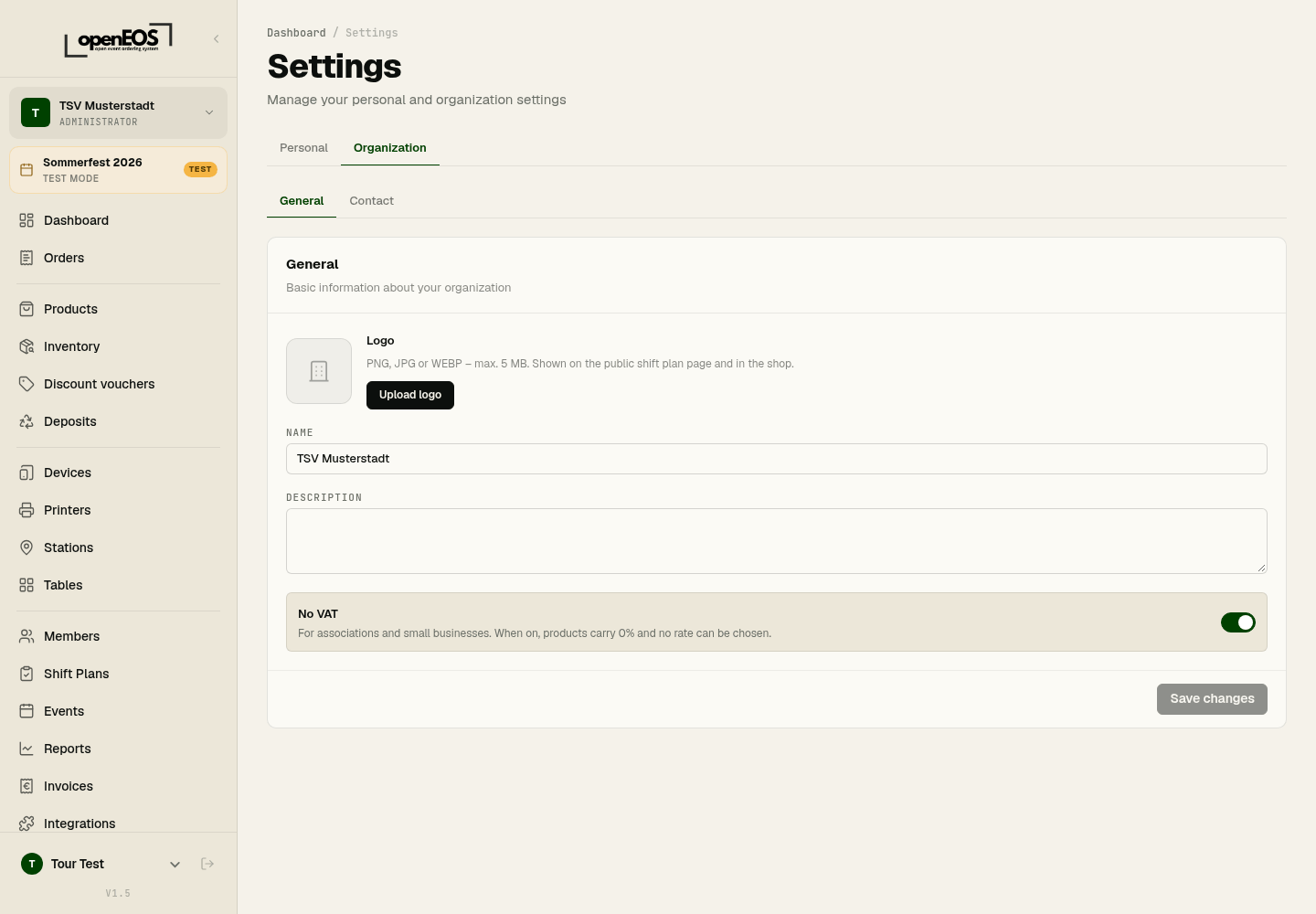
In the Organization tab you manage your organization's master data. It has exactly two sub-tabs: General and Contact.
General
Basic information about your organization:
- Logo – displayed on the public volunteer schedule page and in the shop (PNG, JPG, or WEBP, max. 5 MB).
- Name – appears on invoices and receipts.
- Description – optional additional text.
- No VAT – for associations and small businesses (§ 19 UStG). When on, all products carry 0 % and no tax rate can be chosen.
Contact
Under Contact you enter your organization's address, ZIP code, city, country, phone and website.
The billing address for an event's invoice is entered when you pay for the event, not here.
What you no longer find here
Earlier versions had more sub-tabs. These settings now live where they are needed:
- Checkout mode (Pay immediately or Run a tab) and the tables are set per event, in the event dialog. How this looks at the till is described under Till.
- SumUp is set up as an integration: activate it under Integrations, then configure it on its own SumUp page.
- Invoices and the billing address are under Invoices in the sidebar and when you pay for an event.
Appearance and language
The menu under your name at the bottom left is quicker than the settings:
- Appearance: Light, Dark or System (follows your device).
- Language: German or English.