Printers
The Printers section is where you manage your receipt printers along with their templates and print processes. OpenEOS supports ESC/POS printers connected via the OpenEOS Printer Agent. The section is divided into three tabs: Printers, Templates, and Print Workflows.
Printers
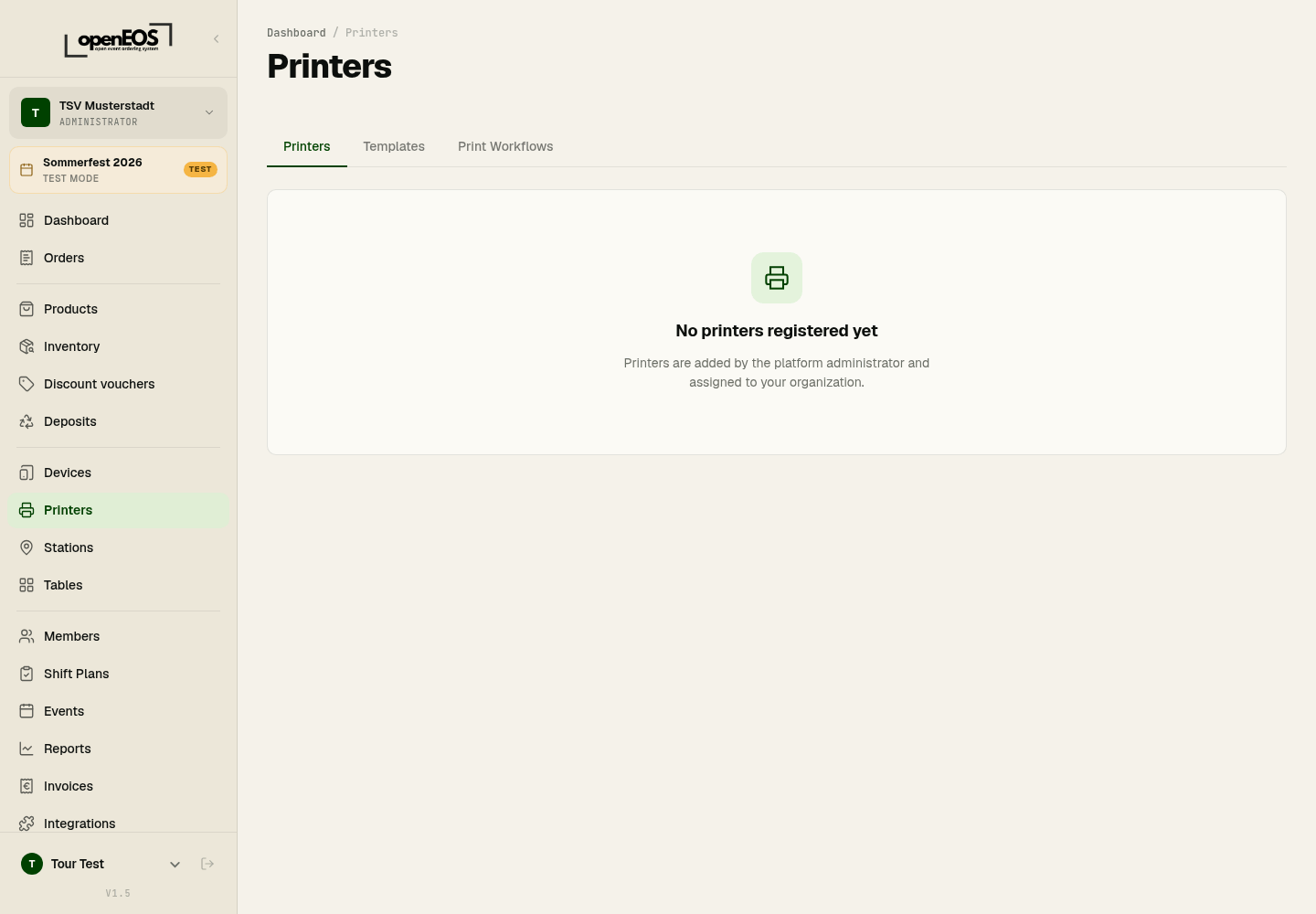
The Printers tab shows the printers assigned to your organization. Each printer is linked to a Printer Agent (the OpenEOS Printer Agent on a Raspberry Pi or Linux computer) that does the actual printing.
Printers are added by the platform administrator and assigned to your organization. Until then, the tab reads No printers registered yet. Contact your administrator if you would like to connect a printer.
Templates
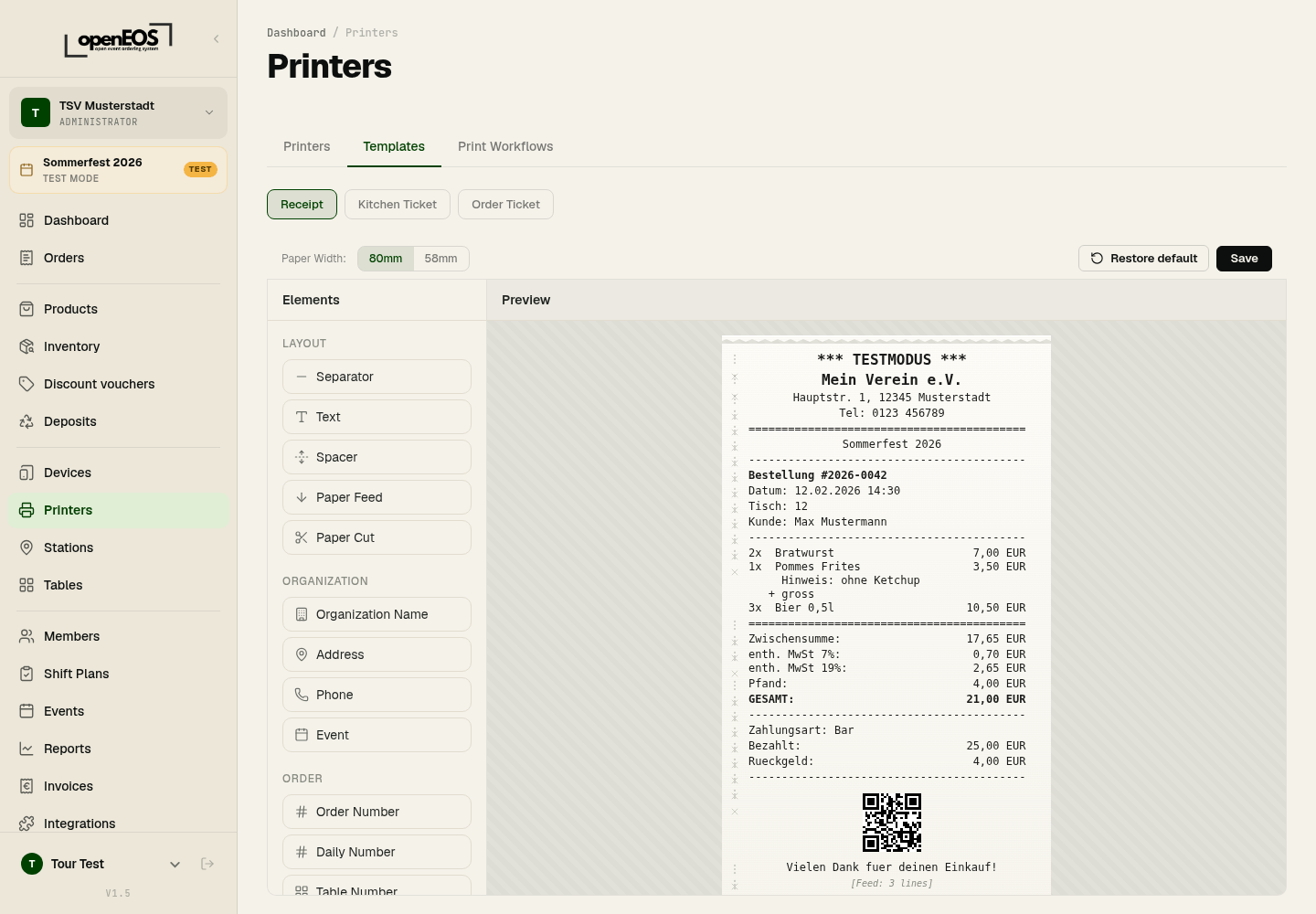
The Templates tab lets you define how receipts look — for example a kitchen receipt, drinks receipt, or till receipt. Templates determine the content and layout of the printout (header, line items, notes, footer).
Print Workflows
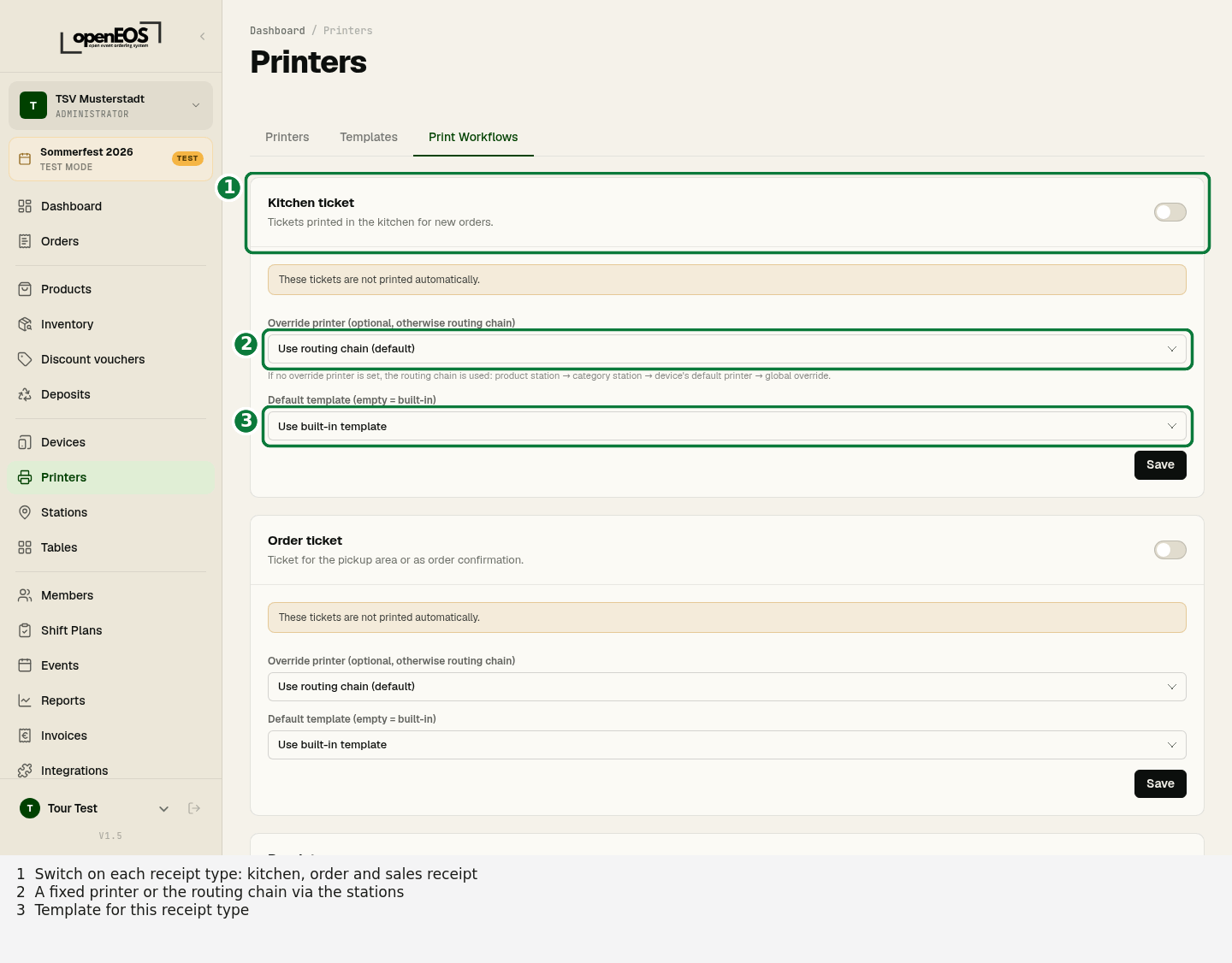
The Print Workflows tab defines which tickets are printed automatically. There are three ticket types, each with its own switch:
- Kitchen ticket – for the kitchen when new orders arrive. Choose the mode: 1 ticket per order, 1 ticket per product with barcode or 1 ticket per location.
- Order ticket – for the pickup area or as order confirmation.
- Receipt – after payment. As trigger choose On payment, On order completion or Manual.
While a ticket type is switched off, it reads These tickets are not printed automatically. For each ticket type you also choose:
- Override printer – a fixed printer. Without one, the routing chain applies: the printer of the product's station, otherwise of the category's station, otherwise the device's default printer.
- Default template – one of your own templates or the built-in one.
Save applies the settings of a ticket type.
How printers work with stations
Printers work hand in hand with stations: order items are routed to the responsible station and printed there using the stored template and the matching print workflow. You choose a station's printer in the station's dialog.