Servers
A server is a till profile without an account and without an email address. It consists of a name, an optional short name (up to 12 characters), a color, a role and a PIN. Helpers switch on shared tills in seconds, and every booking shows who made it.
- Servers have no access to the admin area. They only sign in on tills.
- Servers do not count towards the 10 members. The technical limit is 200 servers per organization; the list shows how many you have created (e.g. "12 of 200 created").
- A till only asks for a server if it is set to Shared till or Fixed server under Devices → Settings, see Device modes.
Whether a till asks for a table (Table Service or Counter) and whether servers sign in on it are two separate settings. A counter till can work with servers just as well.
Who manages servers
Servers are managed by administrators and by members with the Servers permission (granted under Members). You reach the section via Servers in the sidebar.
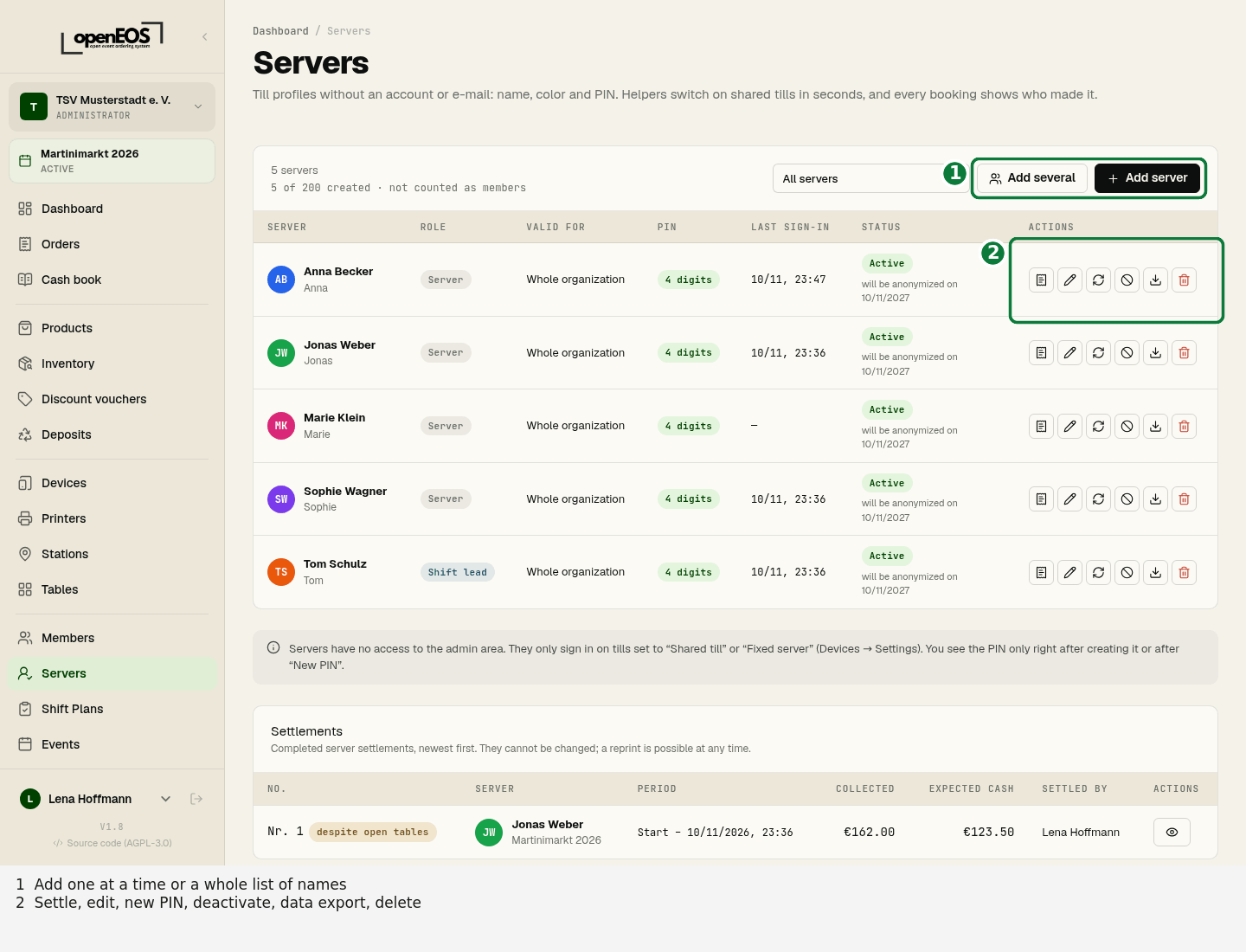
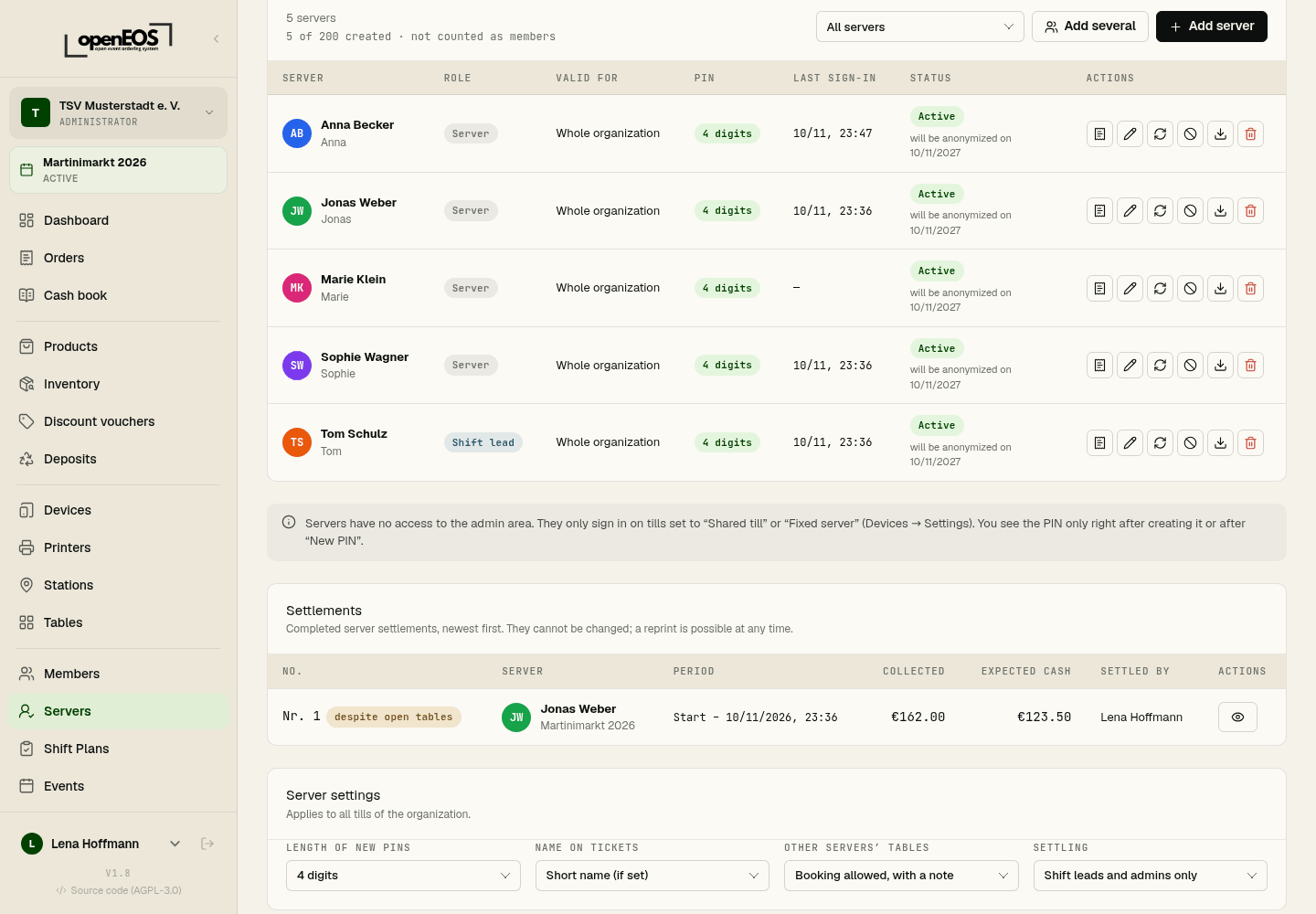
The list shows each server's role, Valid for, PIN length, Last sign-in and status. Filter by validity shows only the servers of one event.
Adding servers
One at a time
- Click Add server.
- Enter the name. A first name or nickname is enough.
- Optional: a short name (up to 12 characters). It appears on the till and on tickets.
- Choose Valid for, the color and the role. If needed, adjust individual switches under Rights (see Roles and rights).
- Optional: an own PIN with 4 to 6 digits. If you leave the field empty, OpenEOS generates the PIN.
- Click Add.
OpenEOS does not accept simple PINs such as 1234, 0000 or 1212, or PINs someone already has. You then see "This PIN is not available".
Several at once
Add several lets you paste a whole list of names: one name per line. Optionally add a short name and role, separated by semicolons (Name;Short name;Role). As the role, write Server or Shift lead.
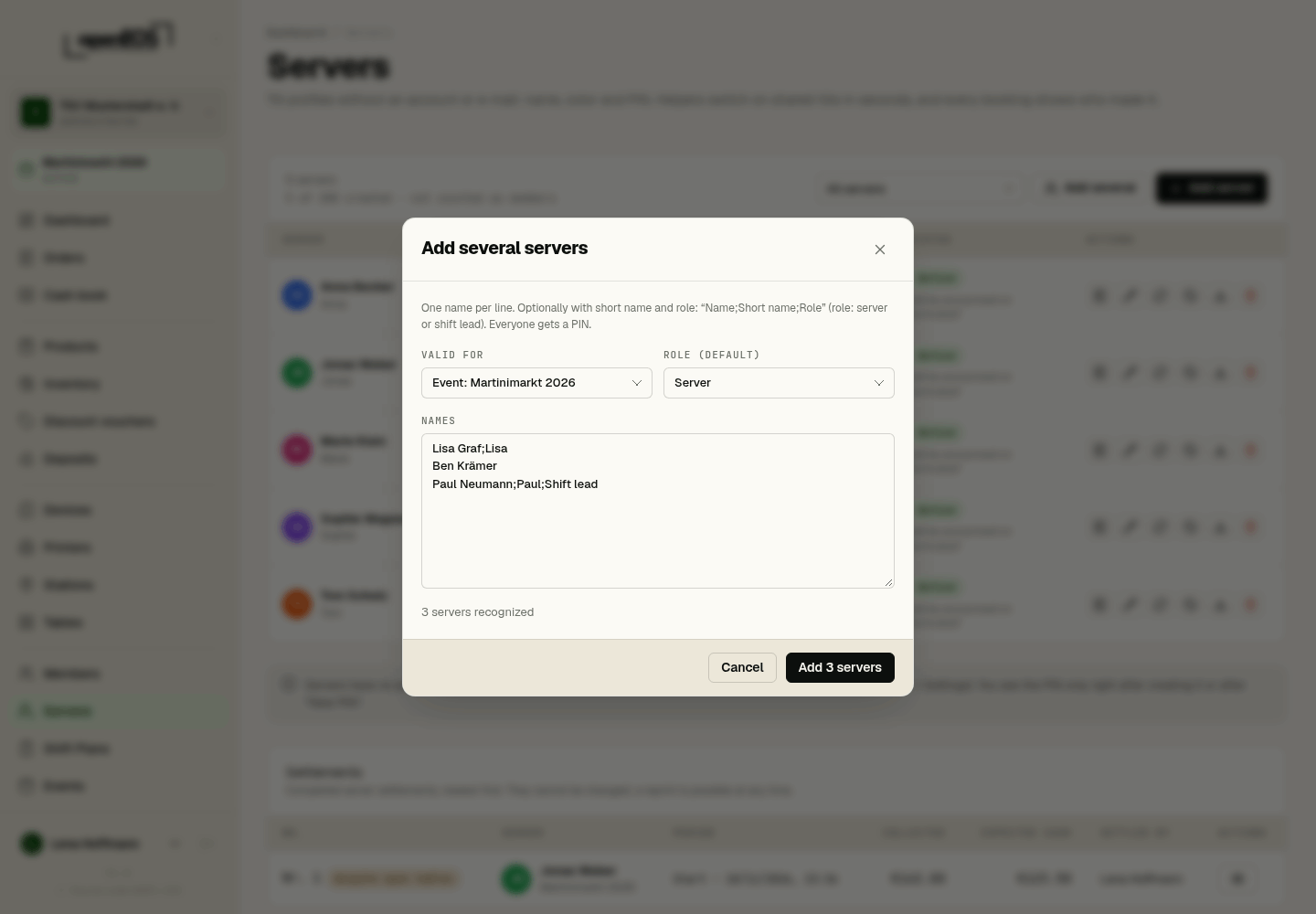
Anna Berger;Anna
Ben Krämer
Lea Schmidt;Lea;Shift lead
- Lines without a role get the Role (default) from the dialog.
- Valid for is set to the running event by default.
- OpenEOS skips duplicate names. The dialog names faulty lines by line number.
- Up to 200 at once.
Everyone gets a PIN.
PINs and PIN sheet
OpenEOS generates the PINs itself. You see them only once: right after adding and after New PIN. Only a check value is stored, and the PIN cannot be worked out from it. Admins cannot look up a PIN later either.
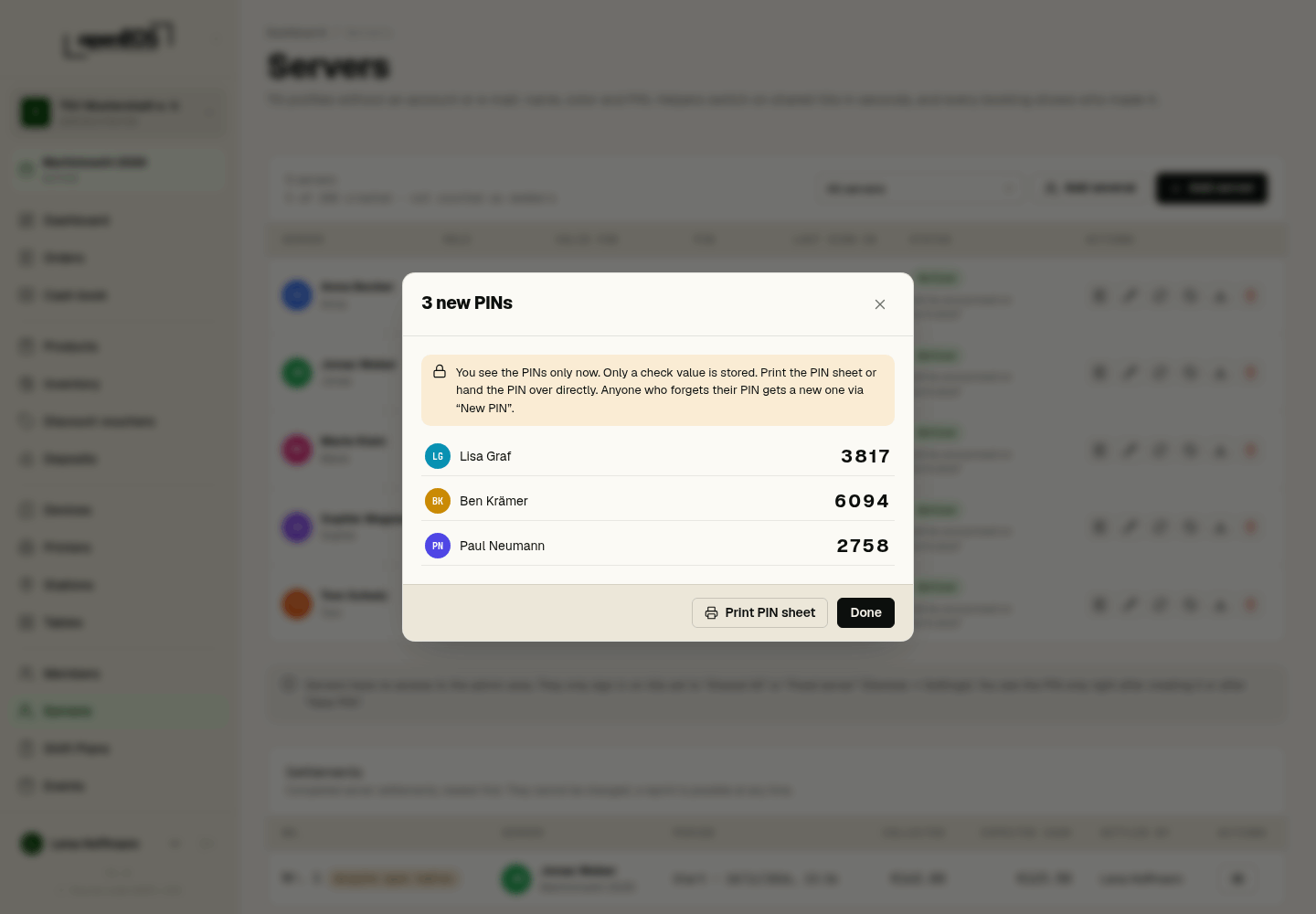
- Print PIN sheet creates an A4 sheet in the browser with 10 cards and cut lines. Each card shows the club, event, name, short name and PIN, plus a note not to share the PIN. Alternatively, hand the PIN over directly.
- Forgot the PIN? New PIN gives the person a new one. Any open sign-ins on tills end.
- One shared PIN space: members and servers share the PINs. A member PIN and a server PIN are never the same.
- Length of new PINs: 4 digits (default) or 6 digits, see Settings. For servers valid for the whole organization we recommend 6 digits.
Add your servers with Add several, print the PIN sheet right after and cut out the cards. You cannot get at these PINs later – only via New PIN.
Valid for
- Whole organization – the server can sign in at every event. Good for regular staff.
- Event – the server is only valid for one event. They can only sign in while that event is activated (including the phases Planned and Ended) or in test mode. Otherwise the till shows "Your PIN is only valid for another event."
Roles and rights
There are two roles:
- Server – books and takes payments. Cancel and refund, opening the cash drawer by hand and the cash book only work with approval. Redeeming discount vouchers is allowed.
- Shift lead – may do all of that and approves cancellations and refunds for others with their PIN.
| Right | Server | Shift lead |
|---|---|---|
| Cancel & refund | only with approval | yes |
| Open the cash drawer by hand | only with approval | yes |
| Redeem discount vouchers | yes | yes |
| Cash book | only with approval | yes |
You can set these four switches per person differently from the role. An experienced server can keep the cash book, for example.
- Without Cancel & refund, the till asks for a shift lead's PIN, see Cancel and refund.
- Without Open the cash drawer by hand or Cash book, the till hides the menu item. A shift lead then signs in briefly.
- For cash payments the cash drawer always opens by itself – nobody needs a right for that.
Employee (payroll)
Every server has the flag „Arbeitnehmer (Lohnkonto)“ (employee, payroll). It is off by default. Only set it for people who are employed by the club and for whom you keep a payroll account, e.g. in a mini-job.
| Flag off (default) | Flag on | |
|---|---|---|
| Tips when checking out | belong to the club (TrinkgeldAG, at the VAT rate of the goods) | belong to the server (TrinkgeldAN, without VAT) |
| Paying out card tips in cash | blocked | possible, see Paying out tips |
Volunteer helpers are not employees – not even when they hand their tips over to the club's cash box. For helpers who receive a volunteer or trainer allowance it depends on the individual case. More under Tips.
Deactivating and deleting
- Deactivate – the PIN is deleted and the till locks immediately. The server stays in the list.
- Activate – the server is back. Then assign a new PIN with New PIN.
- Delete – if the server has not booked anything yet, they are deleted. If they have booked, they are deactivated and their name is replaced by "Server N". The name in the tax records (cash point closing) is kept. More under Privacy and retention.
Settings
Administrators see the Server settings card on the page. It applies to all tills of the organization.
| Setting | Options |
|---|---|
| Length of new PINs | 4 digits (default) or 6 digits. Applies to PINs generated from now on. |
| Name on tickets | Short name (if set) or Full name |
| Other servers' tables | Booking allowed, with a note or Booking allowed, without a note – see Tables |
| Settling | Shift leads and admins only (default) or Servers settle themselves. With the second option every server may settle themselves at the till, see Settling. |
Device modes
Whether and how someone signs in on a till is set per device under Devices → Device → Settings (Servers & security):
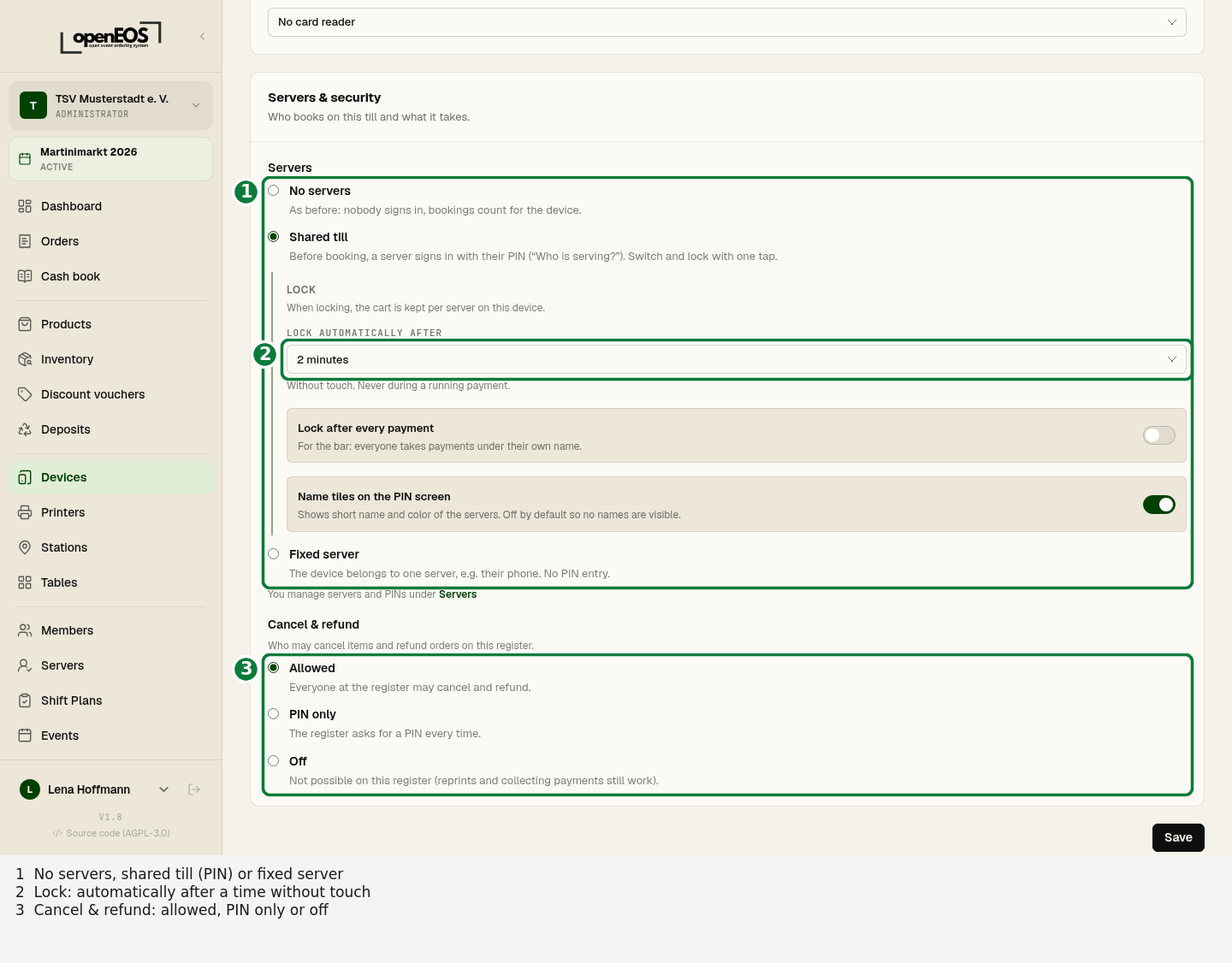
| Mode | How the till works |
|---|---|
| No servers | as before: nobody signs in, bookings count for the device |
| Shared till | before booking, a server signs in with their PIN ("Who is serving?"); switch and lock with one tap |
| Fixed server | the device belongs to one server, their phone for example; no PIN entry |
If a device's fixed server is deactivated, the till shows "This device has no server assigned" until an admin chooses another one.
At the till
This is how a Shared till works. More on the flow is under Till.
Signing in, switching, locking
- The till shows the PIN screen "Who is serving?". The PIN alone is enough – it belongs to exactly one person.
- After signing in, a chip with the color and short name appears at the top right. Tapping it opens My running total, Switch, Lock and Sign out; for a shift lead it also offers Settle (see Settlement).
- When locking or switching, the till keeps the unsent cart per server on this device. When the same person signs in again, it is back. The till shows a note such as "The cart is kept for Anna." The cart only lives in memory: a reload clears it.
- Automatic lock after a time without touch (device setting, 2 minutes by default on shared tills). The till never locks during a running payment.
- Optional Lock after every payment – handy at the bar so everyone takes payments under their own name.
- After a reload of the page the till asks for the PIN again.
- Offline, the till cannot be unlocked: "No connection – unlocking works again once online." A short connection drop does not end the sign-in, though.
- Optionally the PIN screen shows name tiles with short name and color. They are off by default so no names are visible.
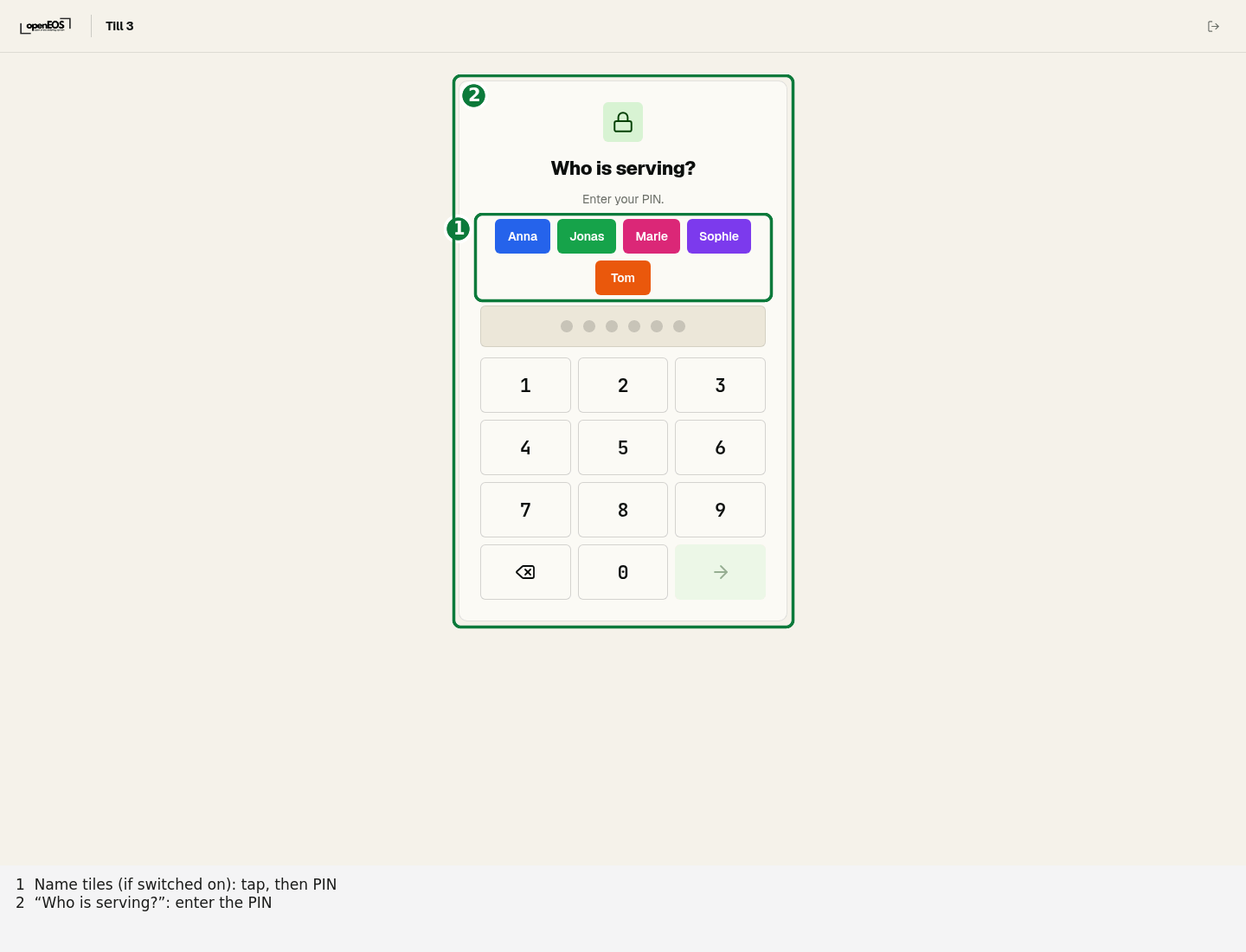
Wrong PINs
Wrong PINs from the last 30 minutes on a device count. A correct PIN does not reset the counter – older failed attempts drop out by themselves after 30 minutes.
| Wrong PINs on one device (30 minutes) | Result |
|---|---|
| 5 | PIN entry locked for 30 seconds |
| each further one | lock twice as long each time (1, 2, 4, 8 minutes …), at most 15 minutes |
| 20 | PIN entry locked until an admin releases it under Devices → Device → Settings with Release PIN entry |
Once the waiting time is over, a correct PIN works again right away. If there are unusually many failed attempts across the organization (more than 50 in an hour), PIN entry pauses on all devices – one minute at first, twice as long with each further failed attempt, at most 15 minutes.
Tables
- Whoever takes the first order at a table (or acknowledges a guest order) becomes the table's responsible server.
- On a shared till, Open tables shows the filter Mine / All. Mine is the default: your tables and tables nobody owns yet. Each table shows the short name and color of the responsible server.
- On the floor plan every open table shows the short name of its responsible server in their color.
- You may book and take payments at another server's table. The till then shows a note such as "Table of Anna" (can be switched off under Other servers' tables). The money counts for whoever takes the payment.
- If someone else should take over the table, hand it over, see Table handover.
Cancel and refund
- With the Cancel & refund right it works directly.
- Without it, the till asks for the PIN of a shift lead, of a member with the Orders permission or of an admin. OpenEOS records who approved.
How the till handles cancellations in general (allowed, PIN only, off) is set per device, see Devices.
Members at the till
Members can still sign in on a till with their member PIN and then work like a server. Existing member PINs keep working. OpenEOS moves them into the shared PIN space the first time they are used.
Settlement
At the end of the shift every server settles up: what did they take, how much cash belongs in the drawer, are any tables still open? A settlement covers one event and starts where that server's last settlement ended – if there is none yet, at the start of the event.
My running total
Tap your chip at the top right of the till and choose My running total. You see what has come together since your last settlement:
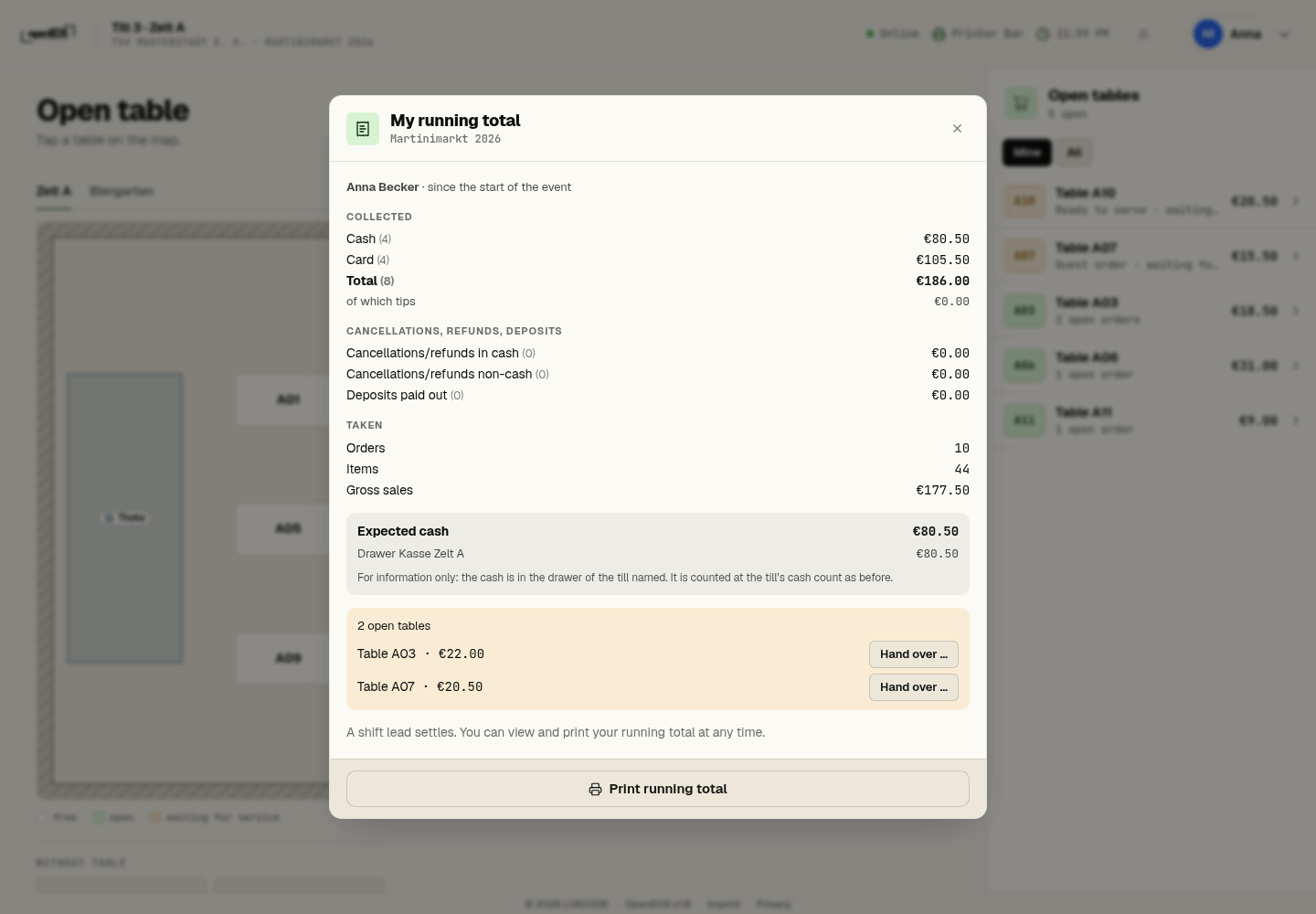
| Block | Content |
|---|---|
| Collected | per payment method – Cash, Card, Other (such as online via SumUp Online) – amount and count, plus Total and of which tips |
| Cancellations, refunds, deposits | Cancellations/refunds in cash, Cancellations/refunds non-cash and Deposits paid out |
| Taken | Orders, Items, Gross sales and Discounts – for information only |
| Expected cash | cash payments − cash refunds − deposit payouts, split by device, e.g. "Drawer Till 2" |
| Open tables | e.g. "2 open tables": your tables that are not paid yet, with the open amount |
- If you take payment at another server's table, the money counts for you.
- Tokens: if you accepted tokens, the block WERTMARKEN (abgeben) (tokens – hand in) lists them per type. You hand them in like cash; they are not part of the expected cash. Cash from token sales increases the expected cash, a buy-back reduces it.
- Expected cash is only a guide. The cash stays in the till's drawer and is counted at the device's cash count as before.
- Print running total prints the figures on the till's receipt printer – not binding, without a number and without signature lines.
Members who take payments with their member PIN see their running total the same way.
Settling
Settlements are done by a shift lead or an administrator:
- At the till: tap the chip → Settle. Under "Who are you settling?" tap the server, then tap Settle … (e.g. Settle Anna).
- In the admin area: Servers → the Settle … icon in the server's row. Everyone who manages servers may do this. Under Print receipt on choose a printer or Do not print, then click Settle.
A server may only settle themselves if Settling is set to Servers settle themselves under Settings. My running total then shows the Settle button.
The result is a settlement with a running number per organization ("Settlement no. 17"). It cannot be changed afterwards.
- The receipt is printed on the till's receipt printer, with signature lines for Server and Till / shift lead. In the admin area you can Reprint it at any time; the reprint is marked „-- KOPIE --“ (copy).
- The server's next settlement starts where this one ends.
- If nothing has happened since the last settlement, OpenEOS says "Nothing to settle since the last settlement."
Secured with the Cloud TSE
If your organization has an active Cloud TSE, the TSE secures every settlement before the receipt is printed – with the settlement number, the expected amount, the counted amount (actual, if recorded) and the difference. The receipt then shows the receipt number, TSE transaction and signature counter; if the TSE is not reachable, it says „TSE nicht erreichbar“. In the DSFinV-K export the settlement is a transaction of its own, „Kellnerabrechnung“ (server settlement), without a payment. Settlements in test mode are not secured.
The settlement does not move any money: the cash stays in the till's drawer, and a difference in the drawer is booked by the cash count as before.
Server settlements are created and kept electronically only. The settlement in OpenEOS cannot be changed, can be reproduced at any time and is kept for ten years. The printed receipt and every reprint are only a copy. If you additionally keep paper lists with signatures or handwritten counts, those are records in their own right and you must keep them.
Open tables block settling
If the server still has open tables, settling is blocked. There are two ways forward:
- Hand over the tables to someone else, see Table handover. Then the settlement goes through.
- As a shift lead or admin, tick Settle despite open tables (note required). A note is required, e.g. "Table 12 pays tomorrow". The receipt and the list of settlements show it.
Training and Orders only
- Test mode: bookings from test mode (and from the Planned phase) are listed separately as "Training (not in the money)". A settlement with only test bookings gets no number ("Training settlement"). It is deleted together with the test orders when you unlock the event or real sales begin.
- Orders only: the running total and the settlement show quantities only (orders, items), no amounts. Open tables do not block here.
Settlements in the admin area
On the Servers page, the Settlements section below the list shows all settlements, newest first: No., Server, Period, Collected, Expected cash and Settled by. Settlements made despite open tables and Training settlements are marked. Filter by validity also narrows this list to one event. The View settlement no. … icon opens the details; there you choose a printer (default: Till receipt printer) and print again with Reprint.
Live cash check
With the server settlements you find the live cash check: for every server the status since their last settlement, with the time it was generated. Shift leads see it at the till too.
- expected cash per server and which drawer the cash is in
- payments, tips, refunds and deposits paid out
- open tables
- card tips of employed servers that have not been paid out yet
If the tax office comes for a cash register inspection, it shows how much cash every server should have right now – cash held by servers is part of the till's cash balance.
Paying out tips
For servers marked „Arbeitnehmer (Lohnkonto)“ you can pay out open card tips in cash – at the till as a shift lead, in the admin area as an admin, or right when settling. Every payout is a receipt of its own, signed with the Cloud TSE, with an acknowledgement to sign, and it reduces the drawer's expected balance. At most the open card tips can be paid out. For volunteers the payout is blocked, because there the tips belong to the club. Details under Tips.
The server wallet (servers work with their own change and settle their cash themselves) is not available yet.
Table handover
When a server goes home, someone else takes over their tables.
- At the till: open the table and tap Hand over table in the Menu, or tap Hand over … next to the open table in My running total. Under "Who takes over?" tap the new server. All open orders of the table that belong to the same server move together.
- Who may? Every server can hand over their own tables. Only a shift lead or an admin can hand over someone else's tables.
- The new server's tills get a note such as "Table 12 was handed over to you.", and the short name and color at the table on the floor plan change.
- Every handover is listed in the order history, e.g. "Table handed over from Anna to Ben".
- In the admin area: when settling (the Settle … icon), choose the new server under Hand over to … below the open tables and click Hand over open tables. That moves all open tables of one server in one go.
What is recorded
Each of these bookings is attributed to the server who is signed in:
- orders and rounds (who sent the round to the kitchen and bar)
- payments, including the tip per payment
- cancellations and refunds – and who approved them
- deposit payouts
- tip payouts (to whom, paid out by whom)
- table handovers (from whom to whom)
- opening the cash drawer and entries in the cash book
On kitchen and bar tickets the Server element (Printers) shows the first available of: who sent the round ▸ responsible server of the table ▸ member ▸ device name. By default it prints the short name, see Name on tickets.
For DSFinV-K, OpenEOS stores the name the server had at the time of signing as BEDIENER.
The figures per person are in the Servers report; the CSV export of orders has a server column ("Bedienung").
Privacy and retention
What OpenEOS stores
For a server, OpenEOS stores:
- the name (a first name or nickname is enough), short name, color, role and rights
- the PIN only as a check value that the PIN cannot be worked out from
- sign-ins on tills with the device and times
- the bookings attributed to them and their settlements
No email, no phone number. OpenEOS does not evaluate working hours or performance per hour.
Let your till staff know that bookings are attributed to them, for example with a notice at the till or when you hand out the PIN sheet. The template for your shop's privacy notice (under Legal → Legal texts for your shop) has the section "7. Kassenpersonal (Bedienungen)" for this.
If you have employees, for example in a restaurant, employee data protection (§ 26 BDSG) and co-determination by the works council (§ 87 (1) no. 6 BetrVG) may apply. This is not legal advice; if in doubt, check with your data protection adviser.
Automatic deletion
OpenEOS cleans up every night (on your own installation only once you switch automatic deletion on, see Retention and deletion):
| What | When | What happens |
|---|---|---|
| Server valid for one event | 30 days after the event ends | anonymized |
| Server valid for the whole organization | 30 days after deactivation or after 12 months without a sign-in | anonymized |
| Server without any booking | at the same times | deleted instead of anonymized |
| Sign-ins on tills | after 90 days | deleted |
- Anonymized means: the name becomes "Server N", and the short name, color and PIN are removed. Cancellation and refund logs show the same pseudonym instead of the name.
- Settlements keep their number and amounts; the name disappears with the anonymization.
- The list of servers shows "will be anonymized on …" in good time.
TSE data, DSFinV-K, cash point closings and the cash book keep the name the server had at the time of booking. These records must be kept for 10 years and are not anonymized.
Deleting a server or an event
- Deleting a server: without bookings it is removed. With bookings it is deactivated and anonymized immediately.
- Deleting an event: its servers can no longer sign in. Servers without bookings are removed, the others are deactivated and anonymized later. The bookings stay attributed to them.
Access request
If a server asks what OpenEOS has stored about them (Art. 15 GDPR), click the Export data about … (CSV) icon in their row under Servers. You get a CSV file with the master data (without the PIN), the sign-ins, the settlements and the number of bookings.
Not yet available
The server wallet and importing helpers from shift plans will follow later.
This is not tax advice. Record in your procedure documentation how you settle and how you handle differences.